
Quote
template for Word
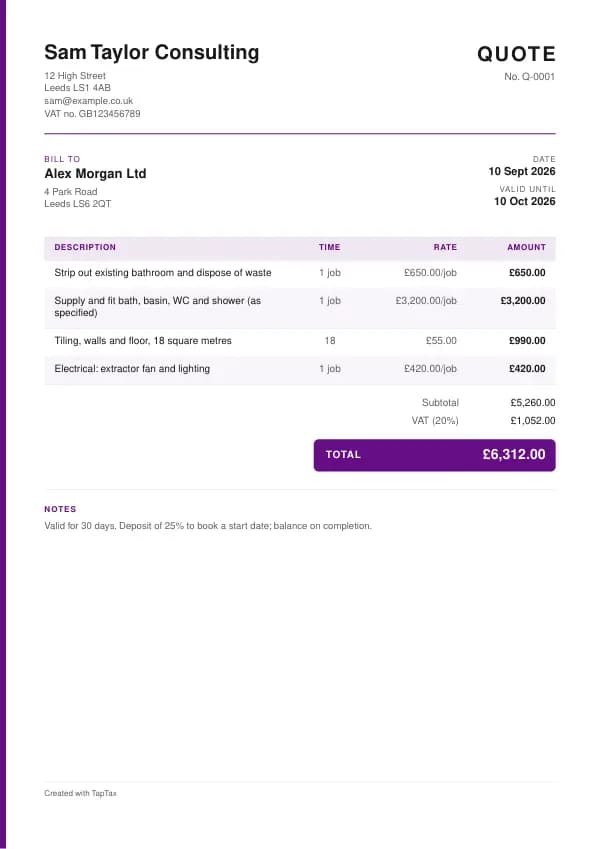
An editable quote in Microsoft Word, with the UK details already laid out and example lines to replace.
Download the quote template
Free, with no sign-up. Replace the words in square brackets with your own details.
The free quote generator makes a finished PDF with your details, logo and colours. Nothing is stored.
Word is the simplest way to fill in a quote if you already have Microsoft Office: open the file, replace the words in square brackets, and send it. This page explains how to get the most from the Word version, from turning it into your own reusable template to sending a PDF your customer cannot accidentally edit, and what a UK quote has to show.
Opening and editing the template
Download the .docx file and open it in Word. If Word opens it in Protected View, choose Enable Editing. Every part you need to change is in square brackets, such as [Your business name]. The quickest way to replace text that appears more than once is Find and Replace (Ctrl+H on Windows, Cmd+Shift+H on a Mac): type the placeholder, type your own details, and replace them all in one go. The document uses ordinary tables, so you can add a row by clicking in the last cell and pressing Tab, or remove one with Layout, Delete, Delete Rows.
Save it as your own template
Once your business details are in, save a master copy you never send. In Word, choose File, Save As, and pick Word Template (.dotx) as the file type. Each time you open the template, Word creates a new untitled document from it, so your master stays clean. Keep your templates in one folder, with a clear name such as "Quote master", and save each finished quote with its number in the file name, for example quote-0042.docx, so you can always find it again.
Getting the figures right
Word is a word processor, not a calculator: amounts you type into a table do not add themselves up. Work the figures out first, or use the Excel version of the template, where every line and total is a formula. If you prefer Word, you can insert a table formula (Layout, Formula, =SUM(ABOVE)) for a total, but it only updates when you select it and press F9, which is easy to forget. Always check the arithmetic before sending: a total that does not match its lines is the quickest way to get a query instead of a payment.
Sending it as a PDF
Send customers a PDF rather than the Word file: it looks the same on every device, cannot be edited by accident, and is what most accounts teams expect. In Word, choose File, Save As (or Export) and pick PDF. Name the file clearly, attach it to an email with the key details in the message (the amount, the due date and how to pay), and keep both the Word and PDF versions in your records.
Adding your logo and branding
To add a logo, click at the start of your business name, choose Insert, Pictures, and pick your logo file; then choose Wrap Text, In Line with Text and resize it so it sits neatly above or beside your name. Keep it modest: the quote should lead with your business name and the details the customer needs. You can change the font for the whole document with Home, Select All, then a font of your choice, but keep it plain and readable, and keep the figures right-aligned so they are easy to check.
What the quote must show
Send a quote whenever you can price a job with confidence: a bathroom refit after a survey, a website with a defined scope, a catering order for a set number of guests, a batch of products. If you cannot know the final cost until the work is under way, such as a repair where the fault is hidden, give an estimate instead and say it is an estimate.
| What it shows | Why it matters |
|---|---|
| The word "Quote" or "Quotation", a number and the date | Identifies it and shows it is a fixed price |
| Your details and the customer's | Who is offering and to whom |
| A clear description of the work or goods, with quantities | Defines what the price covers |
| What is not included | Prevents disputes over extras |
| The price, and whether VAT is included | Consumers must be shown VAT-inclusive prices |
| How long the quote is valid | Protects you from price rises |
| Payment terms, deposit and timescale | Sets expectations before work starts |
The template's example lines, which you replace with your own:
| Line | Quantity | Price | Amount |
|---|---|---|---|
| Strip out existing bathroom and dispose of waste | 1 job | £650.00 | £650.00 |
| Supply and fit bath, basin, WC and shower (as specified) | 1 job | £3,200.00 | £3,200.00 |
| Tiling, walls and floor, 18 square metres | 18 | £55.00 | £990.00 |
| Electrical: extractor fan and lighting | 1 job | £420.00 | £420.00 |
| Subtotal | £5,260.00 | ||
| VAT at 20% | £1,052.00 | ||
| Quote total | £6,312.00 |
Filling in the quote
- Visit or talk through the job, and write down exactly what the customer wants.
- Break the work into clear lines with quantities and prices.
- List anything not included, and any assumptions you made.
- Show VAT, and give consumers the VAT-inclusive total.
- Add validity, deposit, payment terms and a likely start date.
- Ask the customer to accept in writing, and keep the acceptance with the quote.
When a quote becomes binding
A quote is an offer. When the customer accepts it, by signing, by email or by telling you to go ahead, a contract exists on the terms in the quote. For consumers, the Consumer Rights Act 2015 makes what you say or write about the service binding if the customer relies on it, including the price and any timescales you gave. You cannot then charge more for the same work unless the quote allowed for it, for example a clearly stated provisional sum, or the customer agrees a change. If the customer asks for extra work, price it and get agreement before doing it.
UK VAT rates
- Standard rate20%
- Reduced rate5%
- Zero rate0%
Quote or estimate?
A quote is a fixed price for defined work. An estimate is an informed guess, which can change as the job goes on. Customers often treat an estimate as a promise, so label it clearly, and give a quote whenever you can. Our guide to quote vs estimate covers the difference.
Writing the scope
The scope is the part of the quote that prevents disputes. Describe the finished result, the materials and specifications you have allowed for (brands, sizes, finishes), and any work you are relying on others to do. Where the customer is supplying something, say so. Then list exclusions: making good, decoration, waste removal, permits, and anything hidden that you could not inspect. A customer who has read a clear scope is much less likely to be surprised by the final invoice.
Showing VAT on quotes
If you are VAT registered, show the price before VAT, the VAT and the total. When quoting consumers, the price they see must include VAT; quoting a figure "plus VAT" to a homeowner and adding it later is a common source of complaints and can be an unfair trading practice. Business customers are used to net prices, but still show the VAT. If you are not registered, say that no VAT is charged, and keep an eye on the £90,000 threshold: registering part way through a job changes what you must charge.
Validity and price rises
Give every quote an expiry date, often 30 days, so you are not held to an old price when materials go up. If the customer accepts after the date, re-check your costs and re-issue the quote if needed. For long jobs where material prices could move, you can include a clearly stated price adjustment clause for named materials, but for consumers it must be fair and transparent, so keep it simple and specific.
From quote to invoice
Once accepted, the quote is the basis of every invoice on the job. Quote its number on the deposit invoice, any stage payment invoices and the final invoice. If you use the quote generator, the same lines can be turned into an invoice, which keeps descriptions and prices consistent. Any variations are shown separately against the original quote.
Consumers' right to cancel
If you quote a consumer and the contract is made at their home or online, rather than at your premises, they usually have 14 days to cancel. You must give them information about that right and a cancellation form. If they want work to start within the 14 days, get their request in writing; if they then cancel, they pay for the work done up to that point. Failing to give the cancellation information can extend the cancellation period and leave you unable to charge for work done.
Common mistakes
- A vague scope. "Refit bathroom" invites argument; list what is and is not included.
- Quoting consumers a price plus VAT. Consumers must see the VAT-inclusive total.
- No expiry date. Without one, a customer may hold you to an old price months later.
- Sending the editable Word file. Send a PDF, which cannot be changed by accident and looks the same everywhere.
- Overwriting your master copy. Save your master as a Word Template (.dotx) so every new document starts clean.
Checklist before you send it
Before a quote goes out, check it against the list of what it must show:
- The word "Quote" or "Quotation", a number and the date is on it and correct.
- Your details and the customer's is on it and correct.
- A clear description of the work or goods, with quantities is on it and correct.
- What is not included is on it and correct.
- The price, and whether VAT is included is on it and correct.
- How long the quote is valid is on it and correct.
- Payment terms, deposit and timescale is on it and correct.
- A copy is saved with your records.
Keep a copy
You must keep your records for at least 5 years after the 31 January submission deadline of the relevant tax year.
Keep a copy of every quote you issue or receive, digital is fine, with the payments that relate to it. From 6 April 2026, sole traders and landlords with qualifying income over £50,000 must keep digital records and send HMRC quarterly updates under Making Tax Digital, falling to £30,000 from April 2027 and £20,000 from April 2028. The MTD requirement checker shows when it applies to you, and how long to keep invoices covers retention.
Other formats and the full guide
This page covers Word. The quote template guide explains the document itself in full, and the same template is available in the other formats from there. To skip the download, the free quote generator makes a finished PDF online.
A TapTax account, free to start, creates and sends invoices, tracks which are paid, keeps receipts and bills with your records, and files your quarterly updates to HMRC from the same data.
Tools for this
Related guides and definitions
Frequently asked questions
Is this quote template for Word free?
Yes. Download the .docx file free with no sign-up. It also opens in Google Docs, Pages and LibreOffice.
Can I save the quote as a PDF from Word?
Yes. Choose File, Save As or Export, and pick PDF. Send the PDF to your customer and keep the Word file for your records.
Does the Word template add up the totals?
No, Word does not calculate as you type. Use the Excel version for automatic totals, or check the figures carefully before sending.
Invoice, get paid, stay ready for HMRC.
TapTax creates and sends your invoices, tracks which ones are paid and files your quarterly updates to HMRC. Start on the free plan, no card needed.
Get started freeSources
The rules on this page come from official guidance.