
Receipt
template for Word
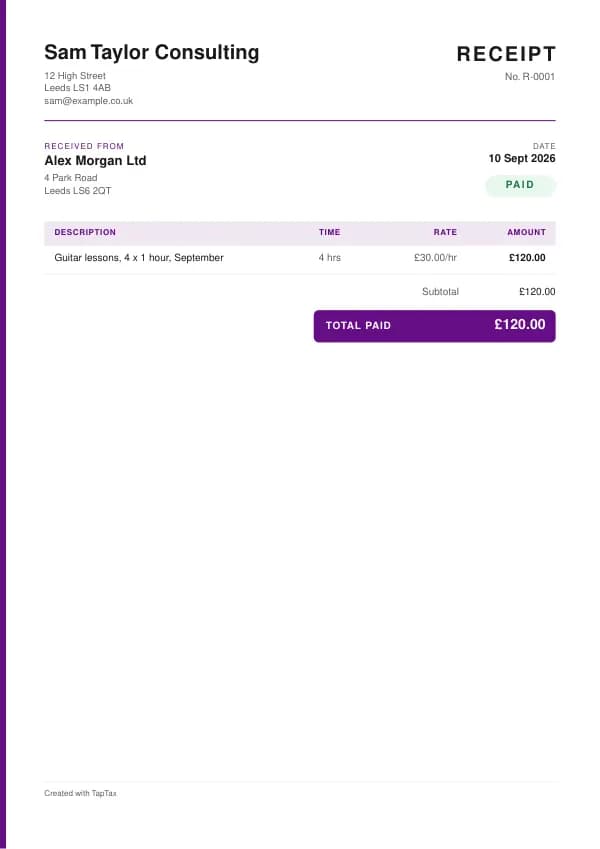
An editable receipt in Microsoft Word, with the UK details already laid out and example lines to replace.
Download the receipt template
Free, with no sign-up. Replace the words in square brackets with your own details.
The free receipt generator makes a finished PDF with your details, logo and colours. Nothing is stored.
Word is the simplest way to fill in a receipt if you already have Microsoft Office: open the file, replace the words in square brackets, and send it. This page explains how to get the most from the Word version, from turning it into your own reusable template to sending a PDF your customer cannot accidentally edit, and what a UK receipt has to show.
Opening and editing the template
Download the .docx file and open it in Word. If Word opens it in Protected View, choose Enable Editing. Every part you need to change is in square brackets, such as [Your business name]. The quickest way to replace text that appears more than once is Find and Replace (Ctrl+H on Windows, Cmd+Shift+H on a Mac): type the placeholder, type your own details, and replace them all in one go. The document uses ordinary tables, so you can add a row by clicking in the last cell and pressing Tab, or remove one with Layout, Delete, Delete Rows.
Save it as your own template
Once your business details are in, save a master copy you never send. In Word, choose File, Save As, and pick Word Template (.dotx) as the file type. Each time you open the template, Word creates a new untitled document from it, so your master stays clean. Keep your templates in one folder, with a clear name such as "Receipt master", and save each finished receipt with its number in the file name, for example receipt-0042.docx, so you can always find it again.
Getting the figures right
Word is a word processor, not a calculator: amounts you type into a table do not add themselves up. Work the figures out first, or use the Excel version of the template, where every line and total is a formula. If you prefer Word, you can insert a table formula (Layout, Formula, =SUM(ABOVE)) for a total, but it only updates when you select it and press F9, which is easy to forget. Always check the arithmetic before sending: a total that does not match its lines is the quickest way to get a query instead of a payment.
Sending it as a PDF
Send customers a PDF rather than the Word file: it looks the same on every device, cannot be edited by accident, and is what most accounts teams expect. In Word, choose File, Save As (or Export) and pick PDF. Name the file clearly, attach it to an email with the key details in the message (the amount, the due date and how to pay), and keep both the Word and PDF versions in your records.
Adding your logo and branding
To add a logo, click at the start of your business name, choose Insert, Pictures, and pick your logo file; then choose Wrap Text, In Line with Text and resize it so it sits neatly above or beside your name. Keep it modest: the receipt should lead with your business name and the details the customer needs. You can change the font for the whole document with Home, Select All, then a font of your choice, but keep it plain and readable, and keep the figures right-aligned so they are easy to check.
What the receipt must show
Give a receipt whenever a customer pays you and wants proof: cash sales, card payments at an event, bank transfers for a job, payments for lessons or treatments. Business customers need a receipt to claim the cost as an expense.
| What it shows | Why it matters |
|---|---|
| The word "Receipt", a number and the date | Identifies the receipt |
| Your business name and address | Who received the money |
| The customer's name, if known | Who paid |
| What was paid for | The goods or services |
| The amount paid and how (cash, card, transfer) | Proof of payment |
| The invoice number it settles, if any | Links payment to the invoice |
| VAT number, rate and VAT-inclusive total, if you are registered | Makes it a simplified VAT invoice up to £250 |
The template's example lines, which you replace with your own:
| Line | Quantity | Price | Amount |
|---|---|---|---|
| Guitar lessons, 4 x 1 hour, September | 4 hours | £30.00 | £120.00 |
| Subtotal | £120.00 | ||
| Total paid | £120.00 |
Filling in the receipt
- Add your business details and the receipt number and date.
- Add the customer's name if you have it.
- Describe what was paid for, with quantity and price.
- Show the amount paid and the payment method.
- If you are VAT registered, add your VAT number and the VAT rate.
- Give the customer a copy, and keep yours with your records.
Receipts as simplified VAT invoices
A VAT-registered business can issue a simplified VAT invoice for supplies of £250 or less, including VAT. It needs your name, address and VAT number, the time of supply, a description of the goods or services, the total payable including VAT, and the VAT rate for each item. That is essentially a receipt with your VAT number and rate on it, which is why many retailers' till receipts are simplified VAT invoices. For sales over £250, a business customer who wants to reclaim VAT needs a full VAT invoice.
Income thresholds that change your paperwork
- Trading allowance£1,000
- MTD from April 2028£20,000
- MTD from April 2027£30,000
- MTD from April 2026£50,000
- VAT registration£90,000
Receipt or invoice?
An invoice asks for payment; a receipt confirms it has been made. When a customer pays on the spot, a receipt is all you need. When you bill first and are paid later, you issue an invoice, then a receipt or a "paid" confirmation on request. Our guide to invoice vs receipt covers the difference.
Numbering receipts
Number receipts in their own sequence, such as R-0001, separate from invoices. A sequence makes it easy to find a receipt when a customer asks and shows your records are complete, which matters most for cash businesses. Never reuse a number, and keep voided receipts rather than throwing them away. Digital receipts from a card reader or till are numbered automatically; if you also write receipts by hand, keep them in a numbered book.
Cash businesses
If much of your income is in cash, receipts and a daily takings record are your main evidence of income. HMRC looks closely at cash businesses, so record every sale, bank takings regularly, and keep till rolls or receipt copies. Consistent records protect you in a compliance check, and help you see how the business is doing. The cash receipt template adds the extra details that make cash sales easy to evidence.
Digital receipts
Emailed or texted receipts are as valid as paper ones, and easier to keep. Card readers and payment apps usually offer them automatically. If you send receipts by email, use your business name as the sender and include the same details as a paper receipt. Keep your copies in one place, ideally linked to the sale in your records, because under Making Tax Digital your records must be digital once it applies to you.
Refunds and returns
Customers usually need their receipt, or other proof of purchase such as a bank statement, to return goods. Consumers have statutory rights to a refund, repair or replacement for faulty goods regardless of your returns policy. When you refund, issue a refund receipt or credit note, and record it against the original sale so your income is correct.
Receipts for your own expenses
Receipts you receive are just as important as those you give. Keep a receipt or invoice for every business expense, because it supports the deduction on your tax return, and if you are VAT registered, a valid VAT invoice or simplified invoice is usually needed to reclaim VAT. Photograph paper receipts before they fade, and use an app such as the TapTax receipt scanner to capture the details straight into your records.
Worked example
A music teacher who is not VAT registered is paid £120 in cash for four lessons. They write receipt R-0042 showing the parent's name, "Guitar lessons, 4 x 1 hour, September", £120, paid in cash, and give the parent the top copy. That evening they add £120 to their takings record, and bank it with the week's other lesson fees on Friday. At the year end, their receipts, takings record and bank statements all agree, so their Self Assessment income figure is easy to prove. If the teacher later registers for VAT, the same receipt with their VAT number and rate added would serve as a simplified VAT invoice.
Common mistakes
- Not recording cash sales. Every sale is income, and receipts are your evidence.
- Leaving your VAT number off receipts when registered. Business customers then cannot reclaim VAT.
- Using a receipt to ask for payment. A receipt confirms payment; use an invoice to request it.
- Sending the editable Word file. Send a PDF, which cannot be changed by accident and looks the same everywhere.
- Overwriting your master copy. Save your master as a Word Template (.dotx) so every new document starts clean.
Checklist before you send it
Before a receipt goes out, check it against the list of what it must show:
- The word "Receipt", a number and the date is on it and correct.
- Your business name and address is on it and correct.
- The customer's name, if known is on it and correct.
- What was paid for is on it and correct.
- The amount paid and how (cash, card, transfer) is on it and correct.
- The invoice number it settles, if any is on it and correct.
- VAT number, rate and VAT-inclusive total, if you are registered is on it and correct.
- A copy is saved with your records.
Keep a copy
You must keep your records for at least 5 years after the 31 January submission deadline of the relevant tax year.
Keep a copy of every receipt you issue or receive, digital is fine, with the payments that relate to it. From 6 April 2026, sole traders and landlords with qualifying income over £50,000 must keep digital records and send HMRC quarterly updates under Making Tax Digital, falling to £30,000 from April 2027 and £20,000 from April 2028. The MTD requirement checker shows when it applies to you, and how long to keep invoices covers retention.
Other formats and the full guide
This page covers Word. The receipt template guide explains the document itself in full, and the same template is available in the other formats from there. To skip the download, the free receipt generator makes a finished PDF online.
A TapTax account, free to start, creates and sends invoices, tracks which are paid, keeps receipts and bills with your records, and files your quarterly updates to HMRC from the same data.
Tools for this
Related guides and definitions
Frequently asked questions
Is this receipt template for Word free?
Yes. Download the .docx file free with no sign-up. It also opens in Google Docs, Pages and LibreOffice.
Can I save the receipt as a PDF from Word?
Yes. Choose File, Save As or Export, and pick PDF. Send the PDF to your customer and keep the Word file for your records.
Does the Word template add up the totals?
No, Word does not calculate as you type. Use the Excel version for automatic totals, or check the figures carefully before sending.
Invoice, get paid, stay ready for HMRC.
TapTax creates and sends your invoices, tracks which ones are paid and files your quarterly updates to HMRC. Start on the free plan, no card needed.
Get started freeSources
The rules on this page come from official guidance.