
Invoice
template for Google Sheets
A invoice for Google Sheets with working formulas, stored in Drive and sent as a PDF.
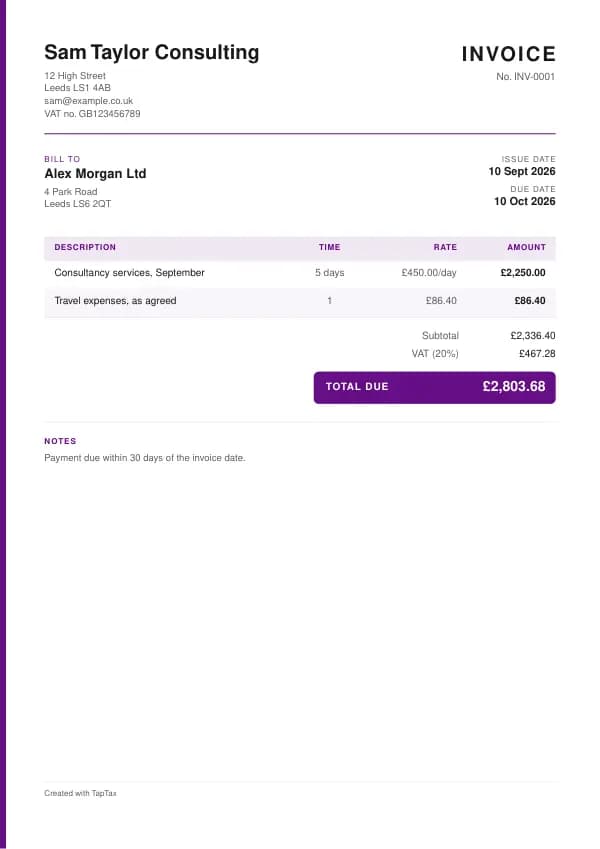
Download the invoice template
Free, with no sign-up. Replace the words in square brackets with your own details.
The free invoice generator makes a finished PDF with your details, logo and colours. Nothing is stored.
Google Sheets gives you the calculating power of a spreadsheet for free, in any browser. Upload the Excel version of the invoice template and its formulas come with it, so each line, the subtotal and the total update as you type. This page covers getting it into Sheets, organising your documents, exporting a clean PDF, and what a UK invoice must show.
Opening the template in Google Sheets
Download the Excel version, then in Google Drive choose New, File upload. Open the uploaded file with Google Sheets and choose File, Save as Google Sheets. The formulas, number formats and layout carry over. Click a total cell to check: the formula bar should show a SUM or a calculation, not a typed number.
One sheet per document
Keep one spreadsheet per year. Fill in your business details on the first tab and keep it as your master. For each new invoice, right-click the master tab, choose Duplicate, and rename the copy with the document number. Insert extra lines inside the existing lines (right-click a row, Insert 1 row above) so the SUM range grows with them, and drag the amount formula down into the new row.
Protecting the formulas
Protect the calculated cells so they cannot be typed over: select them, choose Data, Protect sheets and ranges, and set it to show a warning or restrict editing. If you share the spreadsheet with a bookkeeper, protected ranges keep the figures safe while they work.
Exporting a PDF to send
Choose File, Download, PDF. In the export settings select Current sheet, set the scale to Fit to width, and untick gridlines, so the invoice looks like a document rather than a spreadsheet. Attach the PDF to your email and keep it in the same Drive folder.
Sharing with your bookkeeper
Because the spreadsheet lives in Drive, you can share it with a bookkeeper or accountant without emailing files back and forth. Use Share and give them viewer or commenter access, and keep editor access for yourself, so the figures you sent customers cannot be changed after the event. At the end of the year, download the whole spreadsheet as an Excel file for your records, alongside the PDFs you sent.
What the invoice must show
Send an invoice when you have supplied goods or services and expect to be paid later, even if only a few days later. Businesses almost always need one, because their accounts team cannot pay without it, and a VAT-registered customer needs a VAT invoice to reclaim the VAT.
| What it shows | Why it matters |
|---|---|
| A unique invoice number | Identifies the invoice, in one unbroken sequence |
| Your name or business name, and an address | Where legal documents can be delivered to you |
| Your customer's name and address | Who owes the money |
| A clear description of what you are charging for | What was supplied, so it can be checked |
| The date of supply and the date of the invoice | When the work was done and when you invoiced it |
| The amount charged for each item, VAT if applicable, and the total owed | How the total is built up |
| Your VAT number, and VAT details for each rate, if VAT registered | Lets a registered customer reclaim VAT |
The template's example lines, which you replace with your own:
| Line | Quantity | Price | Amount |
|---|---|---|---|
| Consultancy services, September | 5 days | £450.00 | £2,250.00 |
| Travel expenses, as agreed | 1 | £86.40 | £86.40 |
| Subtotal | £2,336.40 | ||
| VAT at 20% | £467.28 | ||
| Total due | £2,803.68 |
Filling in the invoice
- Replace [Your business name] and the address and contact lines with your own details.
- Add your customer's name and address under "Bill to".
- Give the invoice the next number in your sequence and set the invoice date.
- Describe each piece of work or item on its own line, with the quantity and price.
- Add VAT at the correct rate only if you are VAT registered, and your VAT number.
- Set the due date from your payment terms and add your bank details.
- Save it as a PDF and email it to the person who pays, keeping a copy.
VAT invoices and payment terms
You can only charge VAT if you are VAT registered, and registration is compulsory once your taxable turnover over any 12 months goes above £90,000. A VAT-registered business selling to another VAT-registered business must issue a VAT invoice, normally within 30 days of the supply, showing its VAT number, the time of supply, and for each item the price excluding VAT, the rate and the VAT. Payment terms are up to you and your customer, but between businesses the law fills the gap when none are agreed: payment is due 30 days after the customer receives the invoice or the goods, and late payers owe statutory interest at 8% above the Bank of England base rate plus fixed compensation. The invoice due date calculator and late payment interest calculator do the sums.
Fixed compensation for a late business payment
- Debt up to £999.99£40
- £1,000 to £9,999.99£70
- £10,000 or more£100
Invoice, receipt, quote or pro forma?
An invoice asks to be paid for something already supplied. A receipt confirms payment has been made. A quote offers a price before the work, and a pro forma invoice asks for payment in advance but is not a real invoice or a VAT invoice. If you need to reduce or cancel an invoice after sending it, the right document is a credit note, never an edited invoice.
Getting paid on time
Most late payment is disorganisation, not refusal. Put everything needed to pay on the invoice: your bank details, the reference to use and a clear due date. Send it on the day the work is finished, to the person who actually pays, and quote the customer's purchase order number if they gave you one. Then follow a simple routine: a friendly reminder the day after the due date, a firmer one a week later, and a payment reminder letter after two weeks. If a business still does not pay, a letter before action usually does it.
Invoices for sole traders and limited companies
A sole trader invoices in their own name, or in a business name with their own name shown too, and gives an address where legal documents can be delivered. A limited company must use its full registered name, and its business letters and order forms must also show its registered number, place of registration and registered office address, which is why most companies put them on invoices too. Neither needs to be VAT registered to invoice. Until you register, you simply invoice without VAT; once registered, every invoice to a VAT-registered customer must be a full VAT invoice.
Invoicing and your tax return
For most sole traders, income is taxed on the cash basis, which is the default from the 2024 to 2025 tax year: an invoice counts as income when it is paid, not when it is sent. Your invoices are still your record of what you earned and when, so they need to be complete and kept. Under Making Tax Digital for Income Tax, your quarterly updates are built from these records, which is where keeping invoices digitally from the start pays off: nothing has to be retyped at the end of the quarter.
Common mistakes
- Charging VAT when not VAT registered. You can only show VAT with a VAT number; an unregistered business shows the total with no VAT line.
- Editing an invoice after sending it. Correct mistakes with a credit note and a new invoice, so both sets of records match.
- No due date or bank details. Without them the invoice is harder to pay and easier to ignore; put both on every invoice.
- Exporting the whole spreadsheet. Choose Current sheet in the PDF settings, or every tab ends up in the file.
- Leaving gridlines on. Turn them off in the export settings so the PDF looks professional.
Checklist before you send it
A quick check of every invoice before you send it:
- A unique invoice number is on it and correct.
- Your name or business name, and an address is on it and correct.
- Your customer's name and address is on it and correct.
- A clear description of what you are charging for is on it and correct.
- The date of supply and the date of the invoice is on it and correct.
- The amount charged for each item, VAT if applicable, and the total owed is on it and correct.
- Your VAT number, and VAT details for each rate, if VAT registered is on it and correct.
- A copy is saved with your records.
Keep a copy
You must keep your records for at least 5 years after the 31 January submission deadline of the relevant tax year.
Business documents are records, and records have to be kept. Save every invoice in one place, ideally digitally, so you can find it if a customer or HMRC asks. Making Tax Digital for Income Tax makes digital records compulsory from 6 April 2026 for qualifying income over £50,000, from April 2027 over £30,000 and from April 2028 over £20,000; check your date with the MTD requirement checker.
Other formats and the full guide
This page covers Google Sheets. The invoice template guide explains the document itself in full, and the same template is available in the other formats from there. To skip the download, the free invoice generator makes a finished PDF online.
If you would rather not manage documents by hand, a TapTax account, free to start, keeps your invoices, receipts and bank transactions together and files your Making Tax Digital quarterly updates to HMRC.
Tools for this
Related guides and definitions
Frequently asked questions
Is there a invoice template for Google Sheets?
Yes. Upload the free Excel template to Google Drive and open it with Google Sheets; the formulas keep working.
How do I export a clean PDF from Sheets?
Choose File, Download, PDF, select the current sheet, fit to width and turn off gridlines.
Can I keep a year of documents in one file?
Yes. Duplicate the master tab for each new document and name each tab with its number.
Invoice, get paid, stay ready for HMRC.
TapTax creates and sends your invoices, tracks which ones are paid and files your quarterly updates to HMRC. Start on the free plan, no card needed.
Get started freeSources
The rules on this page come from official guidance.