
Purchase order
template for Word
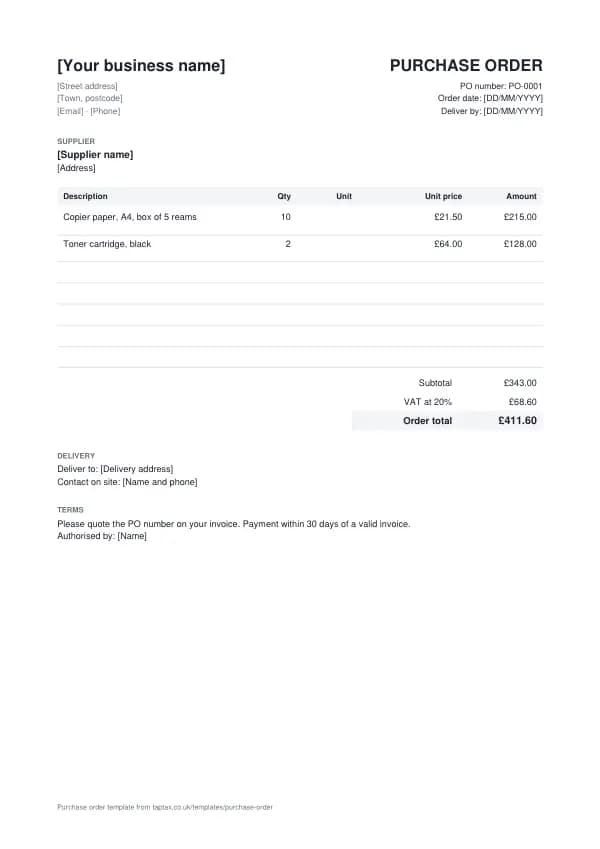
An editable purchase order in Microsoft Word, with the UK details already laid out and example lines to replace.
Download the purchase order template
Free, with no sign-up. Replace the words in square brackets with your own details.
Word is the simplest way to fill in a purchase order if you already have Microsoft Office: open the file, replace the words in square brackets, and send it. This page explains how to get the most from the Word version, from turning it into your own reusable template to sending a PDF your customer cannot accidentally edit, and what a UK purchase order has to show.
Opening and editing the template
Download the .docx file and open it in Word. If Word opens it in Protected View, choose Enable Editing. Every part you need to change is in square brackets, such as [Your business name]. The quickest way to replace text that appears more than once is Find and Replace (Ctrl+H on Windows, Cmd+Shift+H on a Mac): type the placeholder, type your own details, and replace them all in one go. The document uses ordinary tables, so you can add a row by clicking in the last cell and pressing Tab, or remove one with Layout, Delete, Delete Rows.
Save it as your own template
Once your business details are in, save a master copy you never send. In Word, choose File, Save As, and pick Word Template (.dotx) as the file type. Each time you open the template, Word creates a new untitled document from it, so your master stays clean. Keep your templates in one folder, with a clear name such as "Purchase order master", and save each finished purchase order with its number in the file name, for example purchase-order-0042.docx, so you can always find it again.
Getting the figures right
Word is a word processor, not a calculator: amounts you type into a table do not add themselves up. Work the figures out first, or use the Excel version of the template, where every line and total is a formula. If you prefer Word, you can insert a table formula (Layout, Formula, =SUM(ABOVE)) for a total, but it only updates when you select it and press F9, which is easy to forget. Always check the arithmetic before sending: a total that does not match its lines is the quickest way to get a query instead of a payment.
Sending it as a PDF
Send customers a PDF rather than the Word file: it looks the same on every device, cannot be edited by accident, and is what most accounts teams expect. In Word, choose File, Save As (or Export) and pick PDF. Name the file clearly, attach it to an email with the key details in the message (the amount, the due date and how to pay), and keep both the Word and PDF versions in your records.
Adding your logo and branding
To add a logo, click at the start of your business name, choose Insert, Pictures, and pick your logo file; then choose Wrap Text, In Line with Text and resize it so it sits neatly above or beside your name. Keep it modest: the purchase order should lead with your business name and the details the customer needs. You can change the font for the whole document with Home, Select All, then a font of your choice, but keep it plain and readable, and keep the figures right-aligned so they are easy to check.
What the purchase order must show
Raise a purchase order whenever you commit to spending money with a supplier, especially for larger orders, regular stock, or services where the price and delivery date matter. A purchase order gives you a record of what you agreed before the invoice arrives, so you can check the invoice against it, and it shows what you have committed to spend before the bills land.
| What it shows | Why it matters |
|---|---|
| A unique purchase order number | The supplier quotes it on their invoice so you can match them |
| Your business name, address and contact | Who is ordering and where to send questions |
| The supplier's name and address | Who the order is placed with |
| A description of each item or service, quantity and agreed price | Exactly what is being bought and for how much |
| Delivery address and required date | Where and when it must arrive |
| Payment terms and any other conditions | When the supplier will be paid |
| Authorised by, and the order date | Who approved the spending, and when |
The template's example lines, which you replace with your own:
| Line | Quantity | Price | Amount |
|---|---|---|---|
| Copier paper, A4, box of 5 reams | 10 | £21.50 | £215.00 |
| Toner cartridge, black | 2 | £64.00 | £128.00 |
| Subtotal | £343.00 | ||
| VAT at 20% | £68.60 | ||
| Order total | £411.60 |
Filling in the purchase order
- Add your business details and the supplier's name and address.
- Give the order the next PO number and today's date.
- List each item or service with the quantity and the price you agreed.
- Add the delivery address, the date you need it by and a contact on site.
- State your payment terms and ask the supplier to quote the PO number on their invoice.
- Have it approved by whoever authorises spending, then send it as a PDF.
Purchase orders, contracts and VAT
Once a supplier accepts a purchase order, by confirming it or by delivering, it is usually a binding contract on the terms it sets out, so be precise about quantities, prices and dates, and attach or reference any specification the goods must meet. If the supplier accepts on its own terms and conditions instead, the terms that apply can be disputed; the simplest protection is a short line on the purchase order saying your terms apply, or agreeing the terms in writing up front. A purchase order is not a tax document and carries no VAT of its own: the supplier's invoice is what records the supply and any VAT, and it is the invoice, not the purchase order, that a VAT-registered buyer needs to reclaim VAT. Showing expected VAT on the purchase order simply helps you check the invoice when it arrives.
Income thresholds that change your paperwork
- Trading allowance£1,000
- MTD from April 2028£20,000
- MTD from April 2027£30,000
- MTD from April 2026£50,000
- VAT registration£90,000
Purchase order or invoice?
A purchase order comes from the buyer before the supply; an invoice comes from the supplier after it. Matching the two, and the delivery note that records what actually arrived, is how businesses make sure they only pay for what they ordered and received. Suppliers who receive a purchase order should quote its number on their invoice.
Three-way matching for small businesses
Before paying a supplier invoice, check three things agree: the purchase order (what you ordered and the price), the delivery note (what arrived) and the invoice (what you are being charged). Any difference, such as a short delivery or a price increase, is queried before payment. It sounds like big-company process, but it takes seconds with a numbered purchase order, and it stops overpayments and duplicate invoices getting through.
When a customer sends you a purchase order
If you are the supplier, a purchase order is good news: it confirms the order and tells you exactly what the customer's accounts team will pay against. Check it matches your quote before you accept it, and query any difference straight away. Then quote the PO number on your invoice, deliver exactly what it lists, and invoice for exactly that. Many large customers pay only when the invoice, the purchase order and the goods received record agree, so a mismatched invoice can wait weeks.
Blanket and standing orders
For regular supplies, such as monthly stationery or a cleaning contract, a single blanket purchase order can cover a period and a maximum value, with deliveries called off against it. Each invoice then quotes the same PO number and the running total is tracked against the limit. It saves raising a new order each time while keeping spending under control, and it gives your supplier certainty about the relationship.
Purchase orders and cash flow
Every purchase order is money you have promised to pay, so an open-orders list is an early view of your outgoings. Add up the purchase orders not yet invoiced, and the invoices not yet paid, and you know what is coming out of the bank in the weeks ahead. For a sole trader or small business, that simple list is often the difference between being surprised by a big supplier bill and being ready for it. When an order is cancelled or reduced, update or cancel the purchase order in writing too, so your list and the supplier's stay in step.
Common mistakes
- Ordering without a number. Without a PO number, supplier invoices are hard to match and easy to pay twice.
- Vague descriptions or prices. A purchase order is a contract once accepted; be exact about what you are buying and the price.
- Paying an invoice that does not match the order. Check quantity and price against the purchase order before paying.
- Sending the editable Word file. Send a PDF, which cannot be changed by accident and looks the same everywhere.
- Overwriting your master copy. Save your master as a Word Template (.dotx) so every new document starts clean.
Checklist before you send it
Before a purchase order goes out, check it against the list of what it must show:
- A unique purchase order number is on it and correct.
- Your business name, address and contact is on it and correct.
- The supplier's name and address is on it and correct.
- A description of each item or service, quantity and agreed price is on it and correct.
- Delivery address and required date is on it and correct.
- Payment terms and any other conditions is on it and correct.
- Authorised by, and the order date is on it and correct.
- A copy is saved with your records.
Keep a copy
You must keep your records for at least 5 years after the 31 January submission deadline of the relevant tax year.
Keep a copy of every purchase order you issue or receive, digital is fine, with the payments that relate to it. From 6 April 2026, sole traders and landlords with qualifying income over £50,000 must keep digital records and send HMRC quarterly updates under Making Tax Digital, falling to £30,000 from April 2027 and £20,000 from April 2028. The MTD requirement checker shows when it applies to you, and how long to keep invoices covers retention.
Other formats and the full guide
This page covers Word. The purchase order template guide explains the document itself in full, and the same template is available in the other formats from there.
A TapTax account, free to start, creates and sends invoices, tracks which are paid, keeps receipts and bills with your records, and files your quarterly updates to HMRC from the same data.
Tools for this
Related guides and definitions
Frequently asked questions
Is this purchase order template for Word free?
Yes. Download the .docx file free with no sign-up. It also opens in Google Docs, Pages and LibreOffice.
Can I save the purchase order as a PDF from Word?
Yes. Choose File, Save As or Export, and pick PDF. Send the PDF to your customer and keep the Word file for your records.
Does the Word template add up the totals?
No, Word does not calculate as you type. Use the Excel version for automatic totals, or check the figures carefully before sending.
Invoice, get paid, stay ready for HMRC.
TapTax creates and sends your invoices, tracks which ones are paid and files your quarterly updates to HMRC. Start on the free plan, no card needed.
Get started freeSources
The rules on this page come from official guidance.