
How to File Your MTD Quarterly Update in the TapTax App
A step-by-step guide to filing your Making Tax Digital quarterly update with TapTax.
Submit your MTD quarterly update in just a few simple steps.
If you are self-employed or a landlord earning above the Making Tax Digital threshold, HMRC now expects a short digital summary of your income and expenses four times a year, not just one return at the end. It sounds like more work. With TapTax it is the opposite: your figures are already tracked, so filing a quarterly update is mostly tapping "submit".
This guide walks through the whole flow end to end, showing each step on both the web dashboard and the TapTax mobile app. Most people finish in under five minutes, and no accountant is required.
- A quarterly update is a cumulative, year-to-date summary of your business income and expenses sent to HMRC.
- TapTax pre-fills the figures from the transactions you have already tracked, so there is little to type.
- You file four times a year, each due one month and seven days after the quarter ends.
- The same five steps work identically on the web dashboard and the mobile app.
What is an MTD quarterly update?
- Quarterly Update
- A digital submission to HMRC that summarises your business income and allowable expenses for the tax year so far. Under Making Tax Digital for Income Tax you send four of these each year, then confirm your final figures once at year end.
Two things trip people up the first time, and TapTax handles both for you:
- Quarterly updates are cumulative. Each submission covers the whole tax year to date, not just the latest three months. Quarter two includes quarter one, quarter three includes quarters one and two, and so on. TapTax always sends the running total, so you never have to do the arithmetic.
- Every quarter has a deadline. Each period is due one month and seven days after it closes. The first 2026-27 quarter (6 April to 5 July) is due by 7 August 2026.
Before you start
You will need three things, all of which are one-time setup:
- A TapTax account (sign up free with your email, Google, or a magic link).
- Your National Insurance Number (NINO), which HMRC uses to identify you.
- A connection to HMRC, authorised once through HMRC's own secure sign-in.
That is it. Now for the five steps.
Step 1: Sign in and connect to HMRC
Open TapTax and sign in. New here? Tap Start free and create an account in a few seconds.
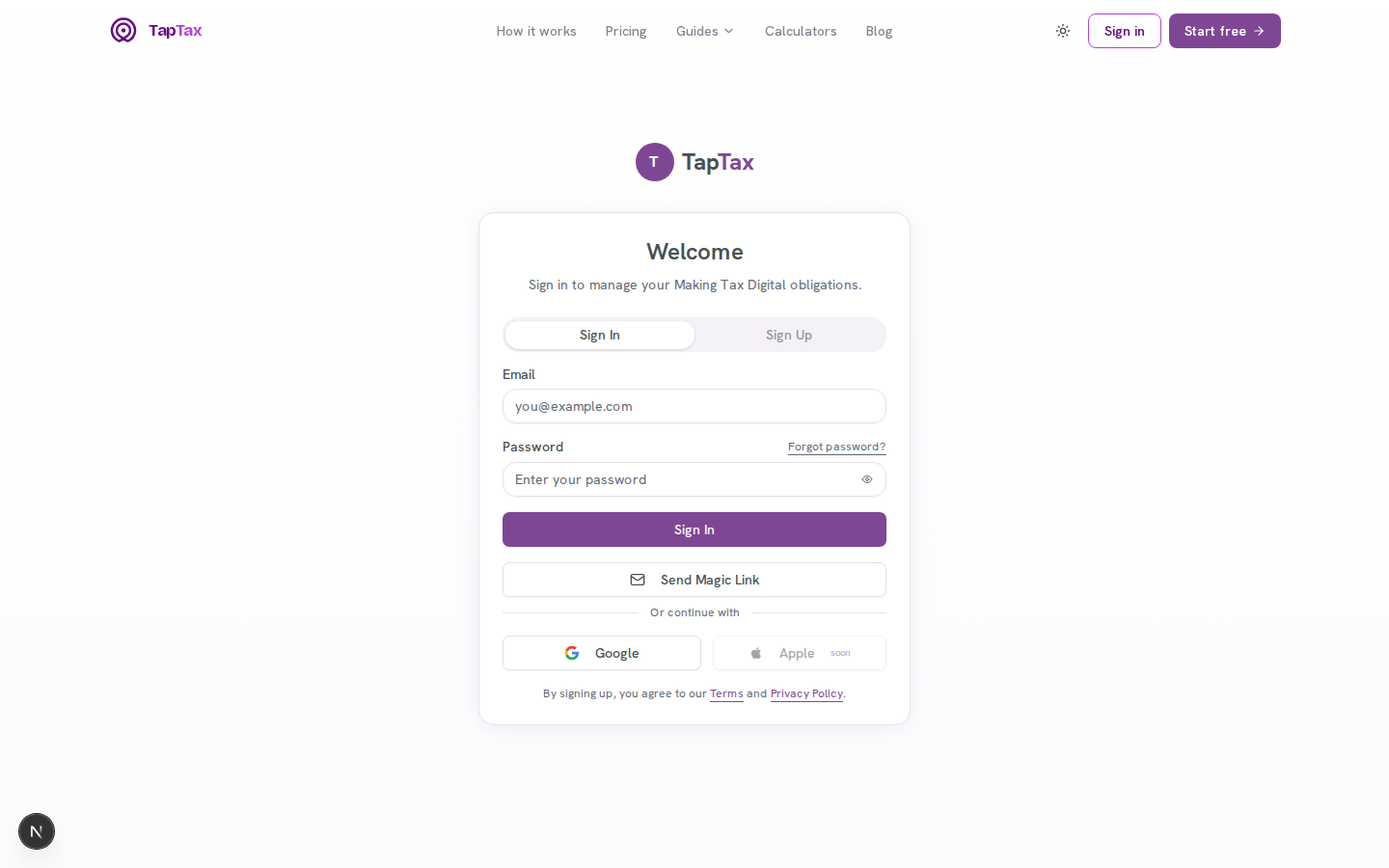
On the web
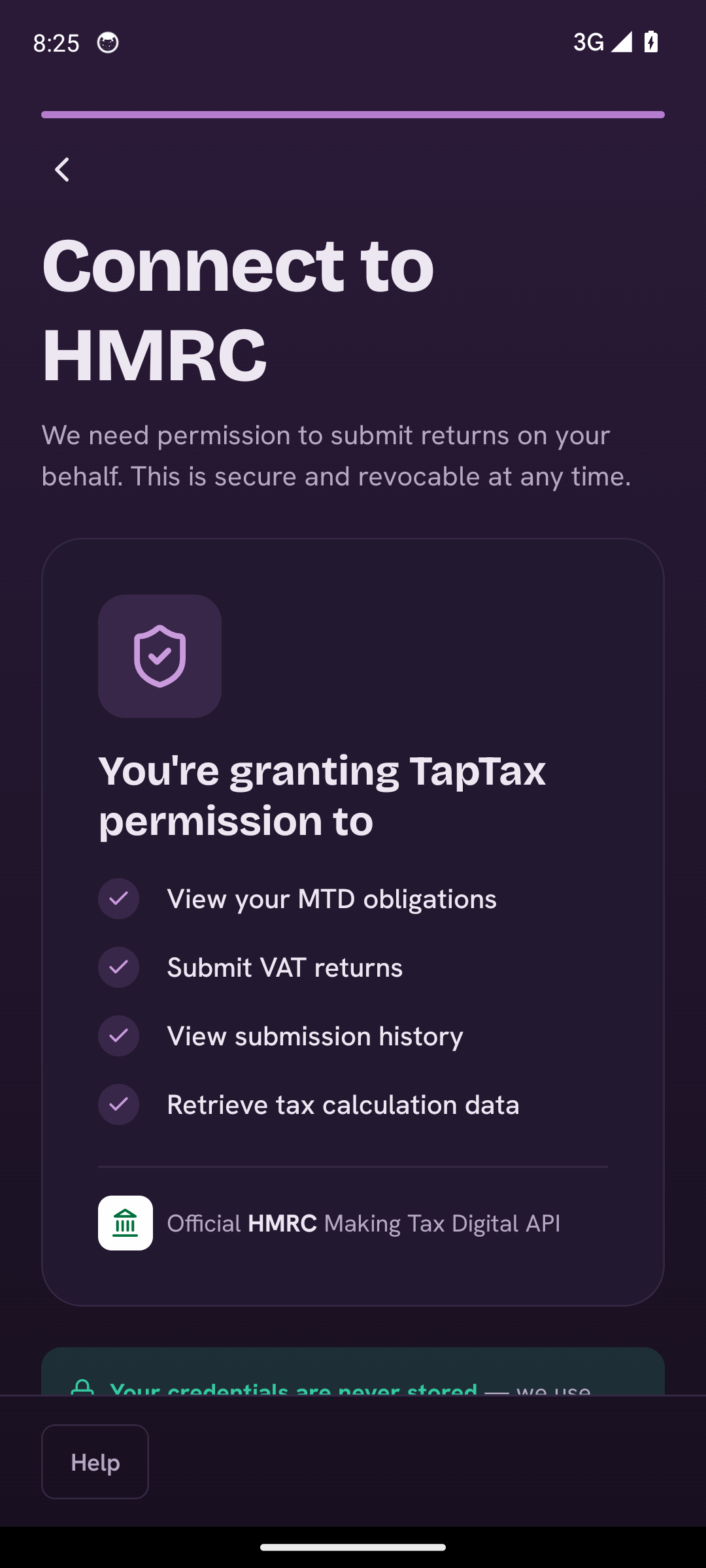
In the TapTax app
Once you are in, you will see a prompt to connect your HMRC account. Tap Connect HMRC. You are handed over to HMRC's own secure sign-in to authorise TapTax. TapTax never sees your Government Gateway password. This is also where you set your National Insurance Number so HMRC knows the updates belong to you.
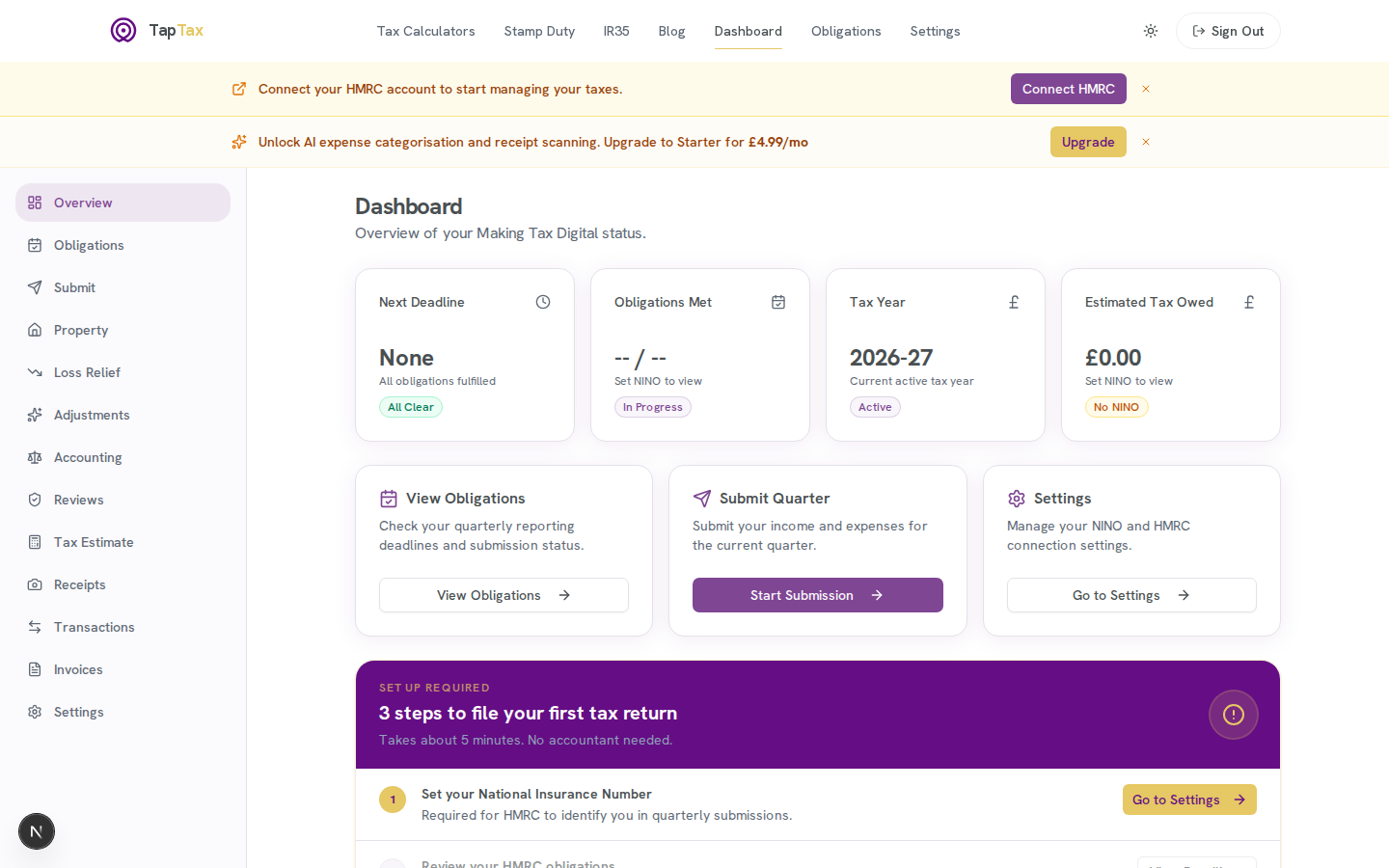
On the web
Step 2: Add your income and expenses
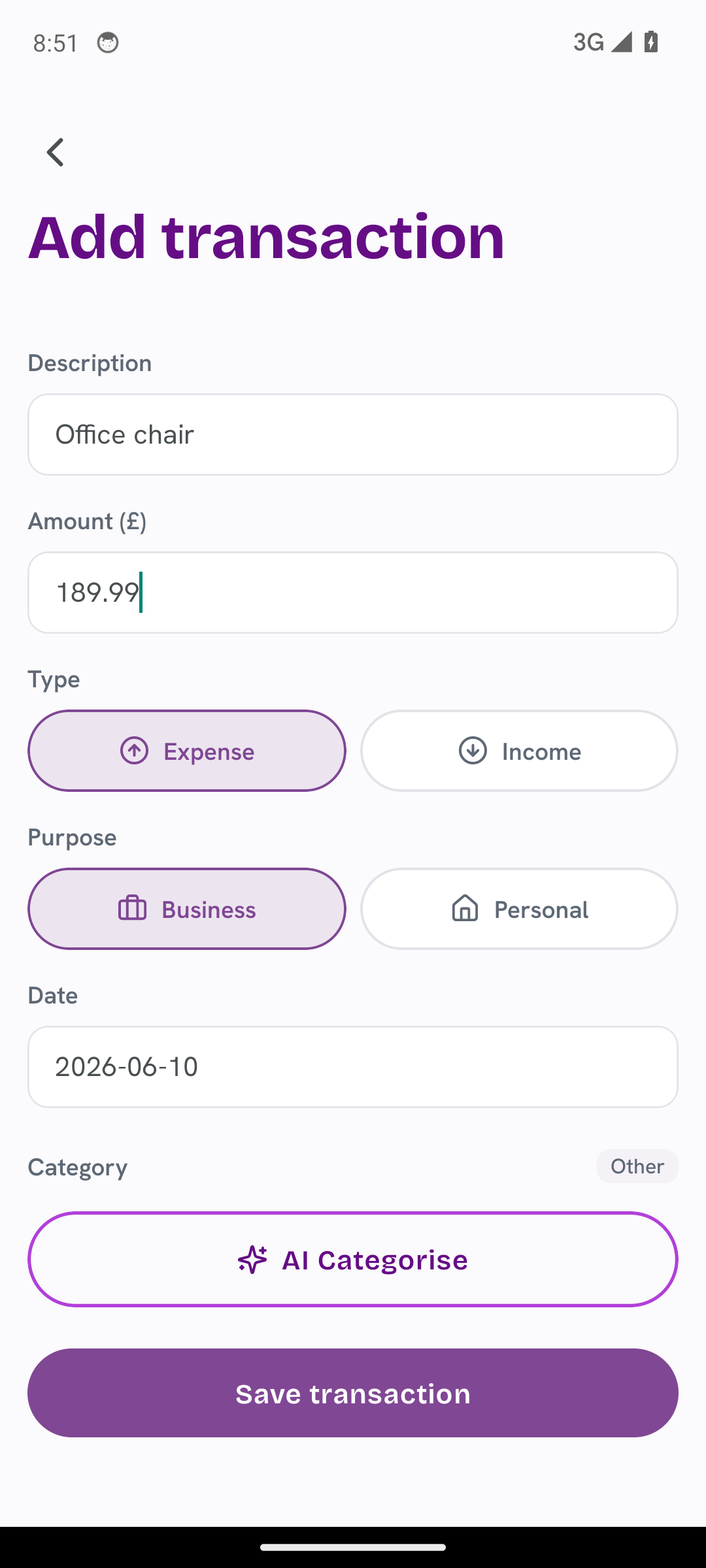
This is where the time savings come from. You can build a whole tax year at once or add entries as you go. TapTax gives you two ways to get transactions in today, with a third on the way:
- Import a bank statement (CSV) and TapTax categorises every line for you. There are presets for 16 UK banks, including Barclays, HSBC, Lloyds, NatWest, Monzo and Starling.
- Add manually, which is handy for the occasional cash job or one-off expense.
- Connect a bank (coming soon): a read-only Open Banking connection will keep transactions in sync automatically once it launches.
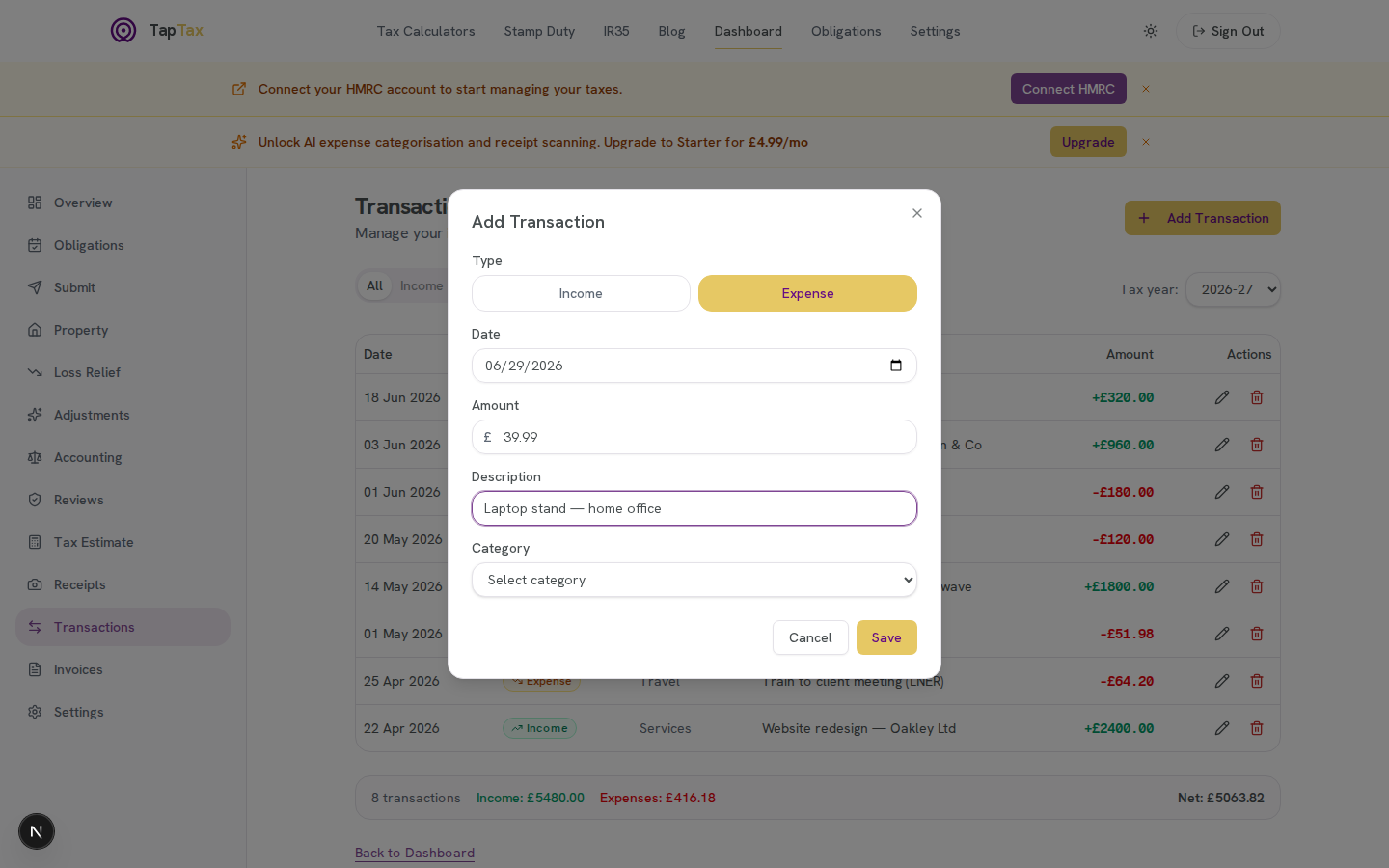
On the web
In the TapTax app
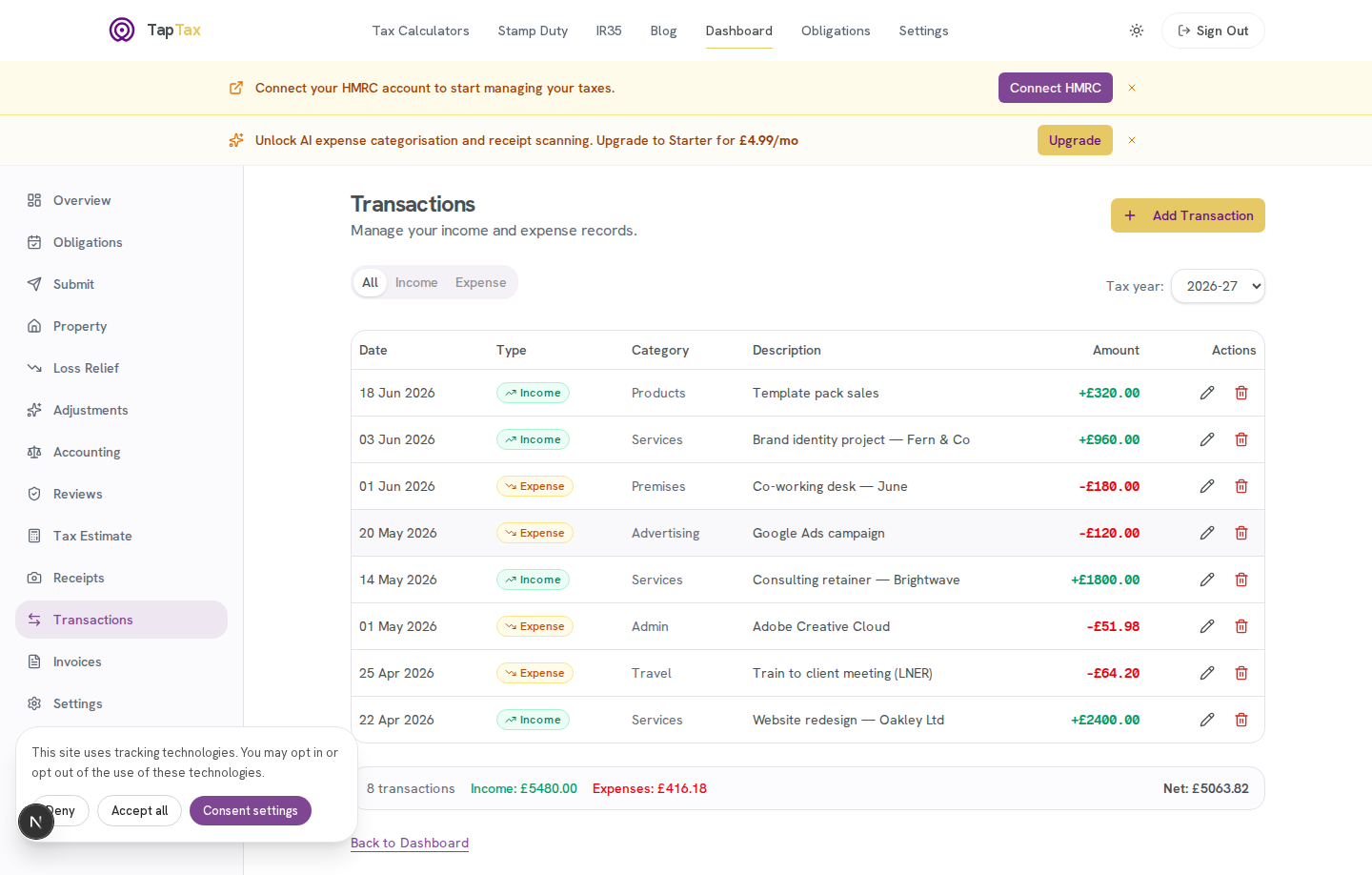
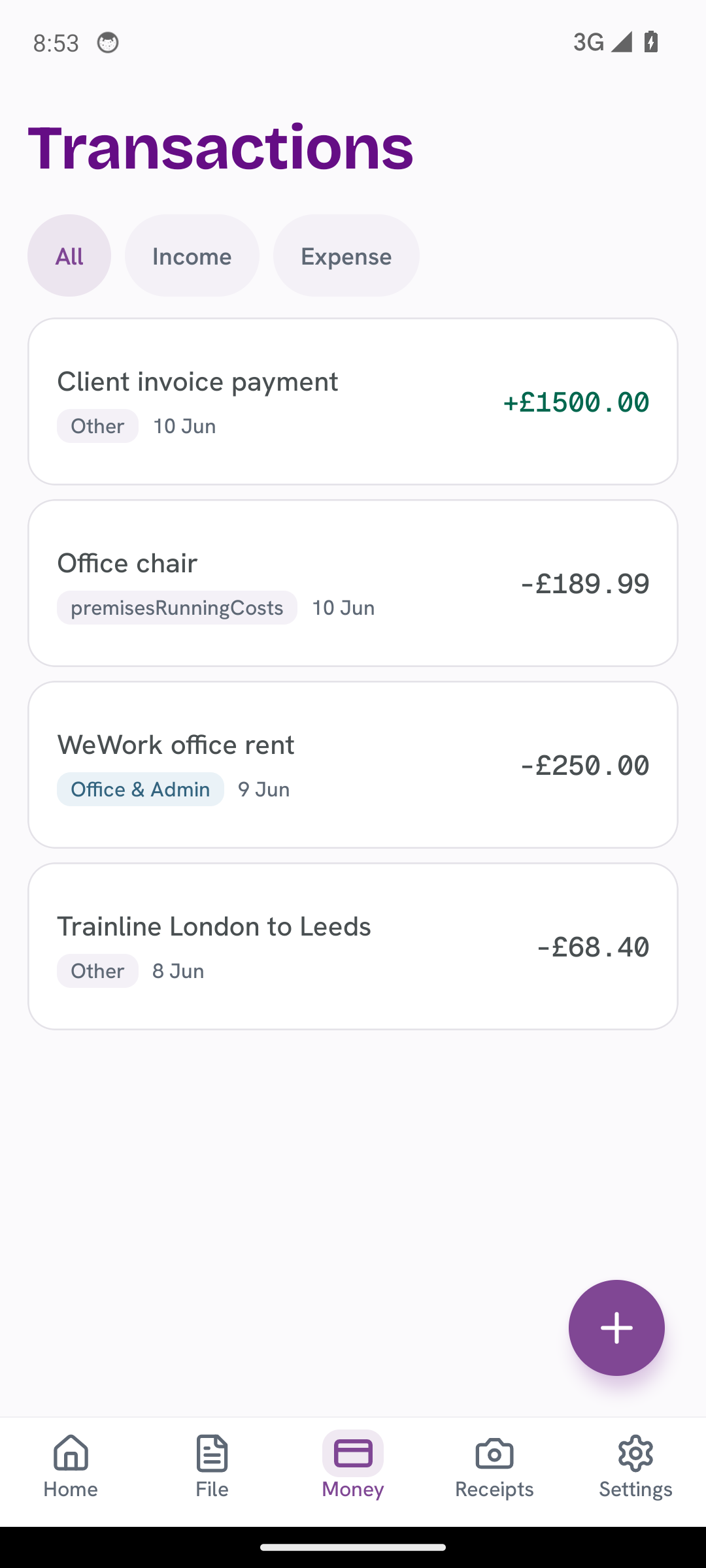
Every entry you add lands in one running list, with a live total for income, expenses, and net profit for the tax year.
On the web
In the TapTax app
Step 3: Review and categorise
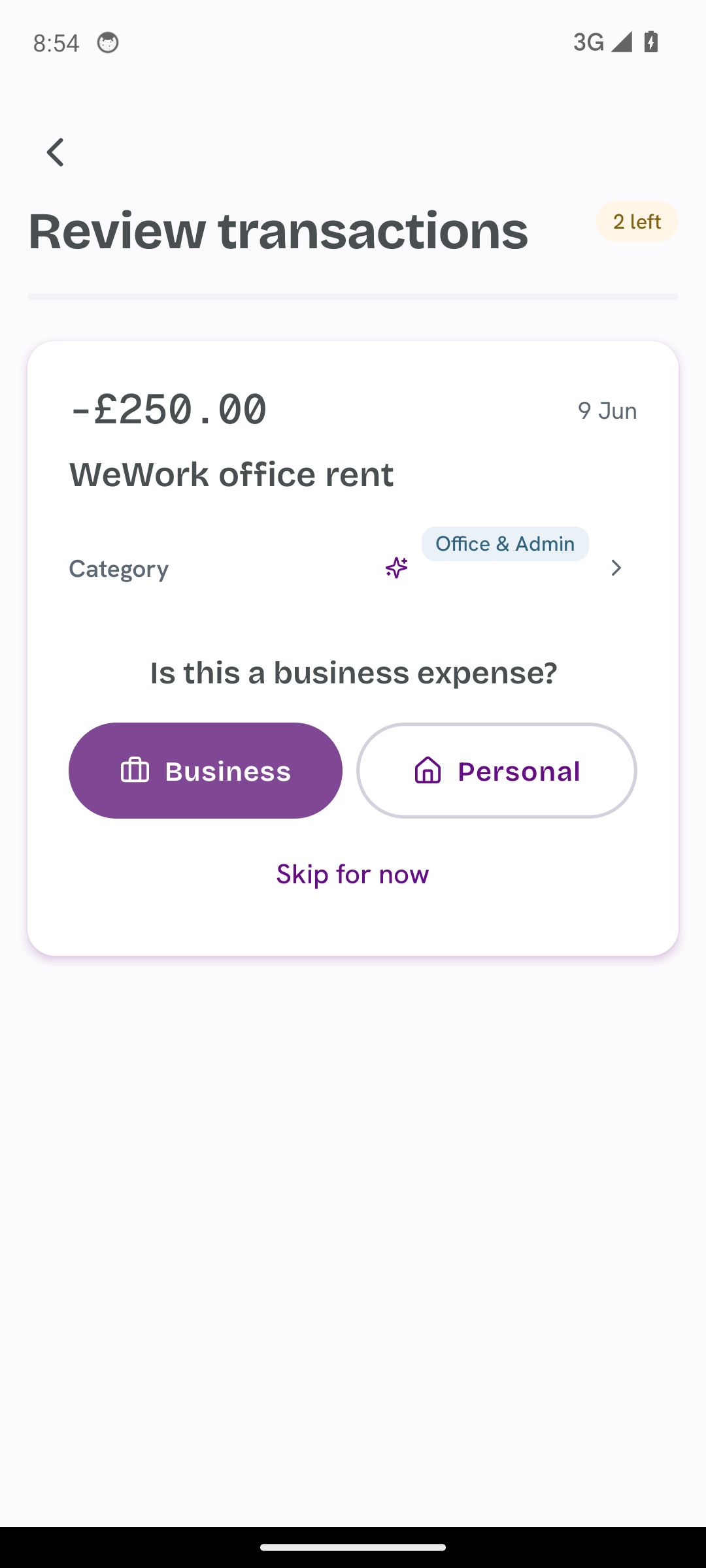
Good categories mean an accurate submission. TapTax categorises imported transactions automatically, and on paid plans the built-in AI suggests a category for each one. You stay in control: tap any transaction to confirm or correct the category before it counts towards your quarterly figures.
In the TapTax app
Quarterly filing is far simpler than people fear. If your transactions are categorised, the update is basically a confirmation screen.
Step 4: Check your quarterly obligations
Open Obligations to see your reporting periods and deadlines, pulled live from HMRC. Each row shows the period it covers, the date it is due, and whether it is still open or already fulfilled.
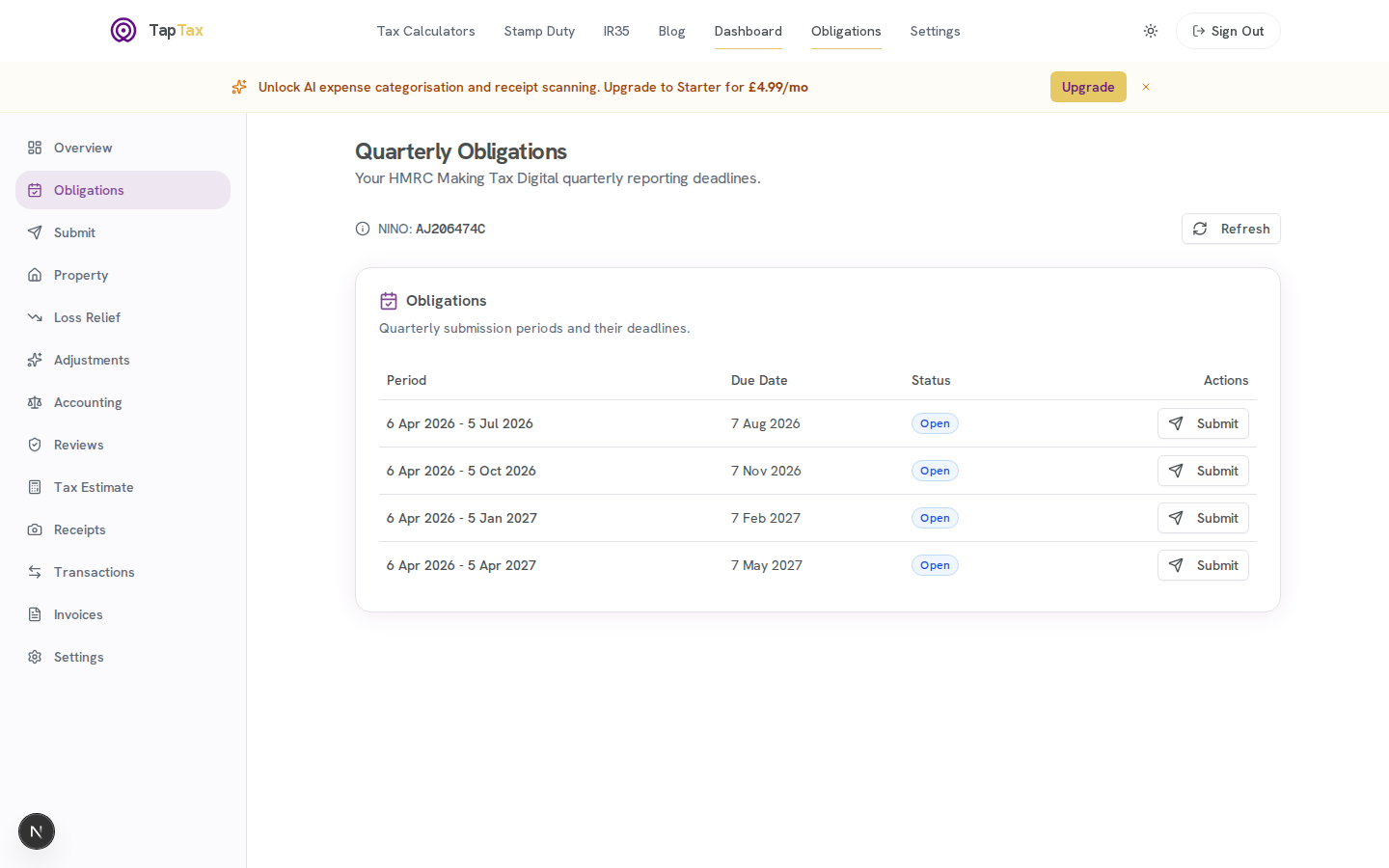
On the web
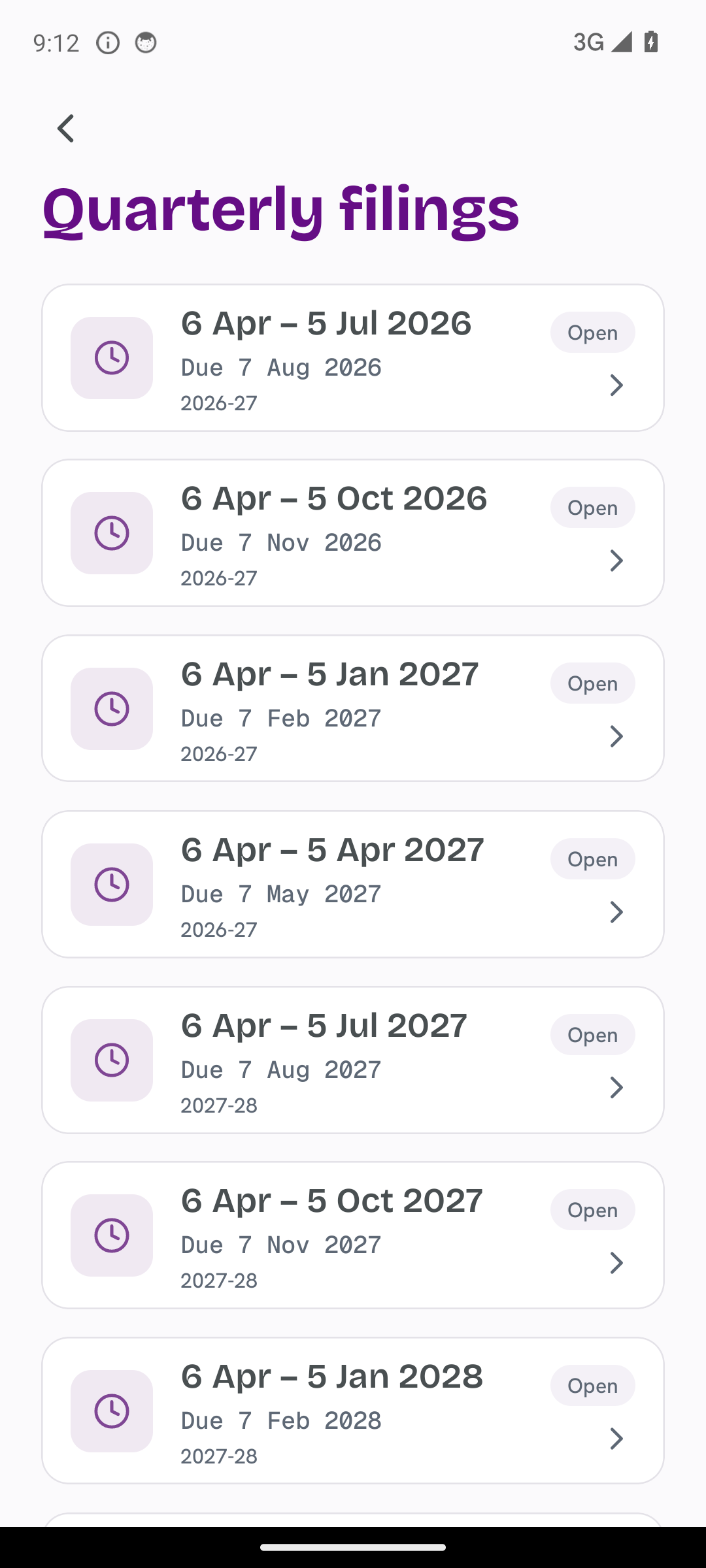
In the TapTax app
Find the period you want to file and tap Submit next to it. That takes you straight to the filing screen with the right period already selected.
Step 5: Submit your quarterly update
The submission screen shows your cumulative year-to-date income and expenses, pre-filled from the transactions you tracked. Expenses are grouped into HMRC's standard categories so the totals map cleanly to your return. Review the figures, adjust anything that needs it, and check the income, expenses, and net profit totals at the bottom.
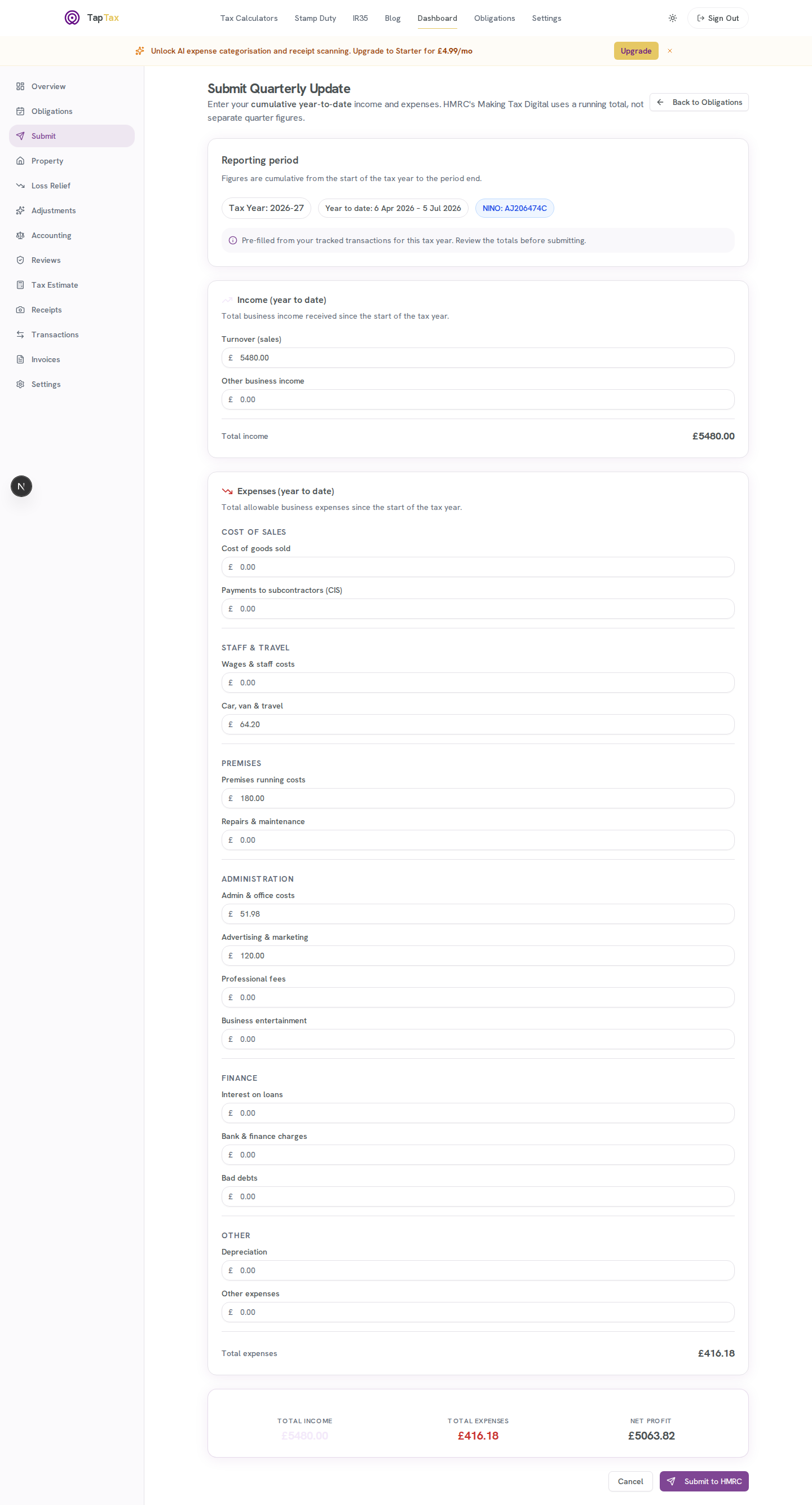
On the web
On mobile the same screen rolls up your turnover and expenses with a single Tap to File button.
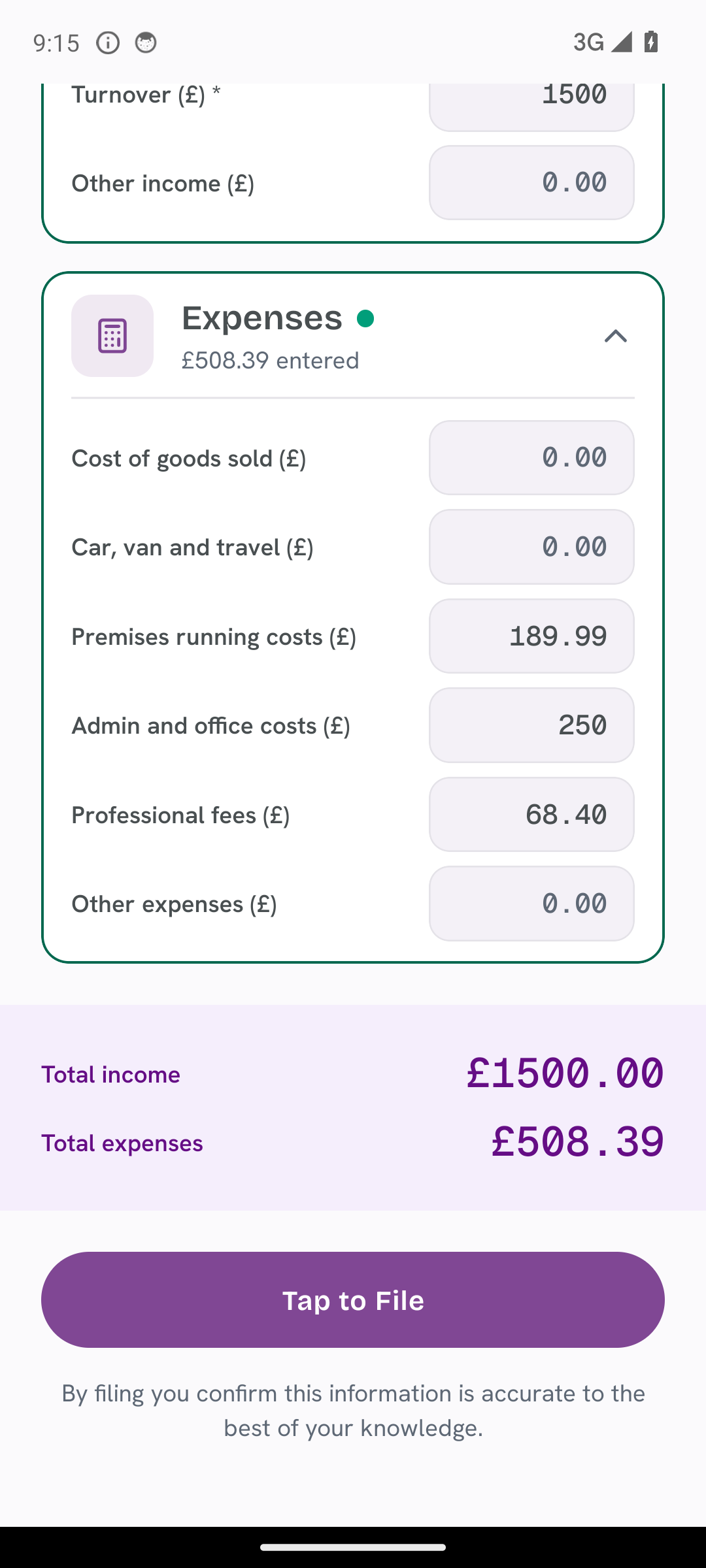
In the TapTax app
When you are happy, tap Submit to HMRC (or Tap to File on mobile). TapTax sends your cumulative figures to HMRC and confirms the moment it is done.
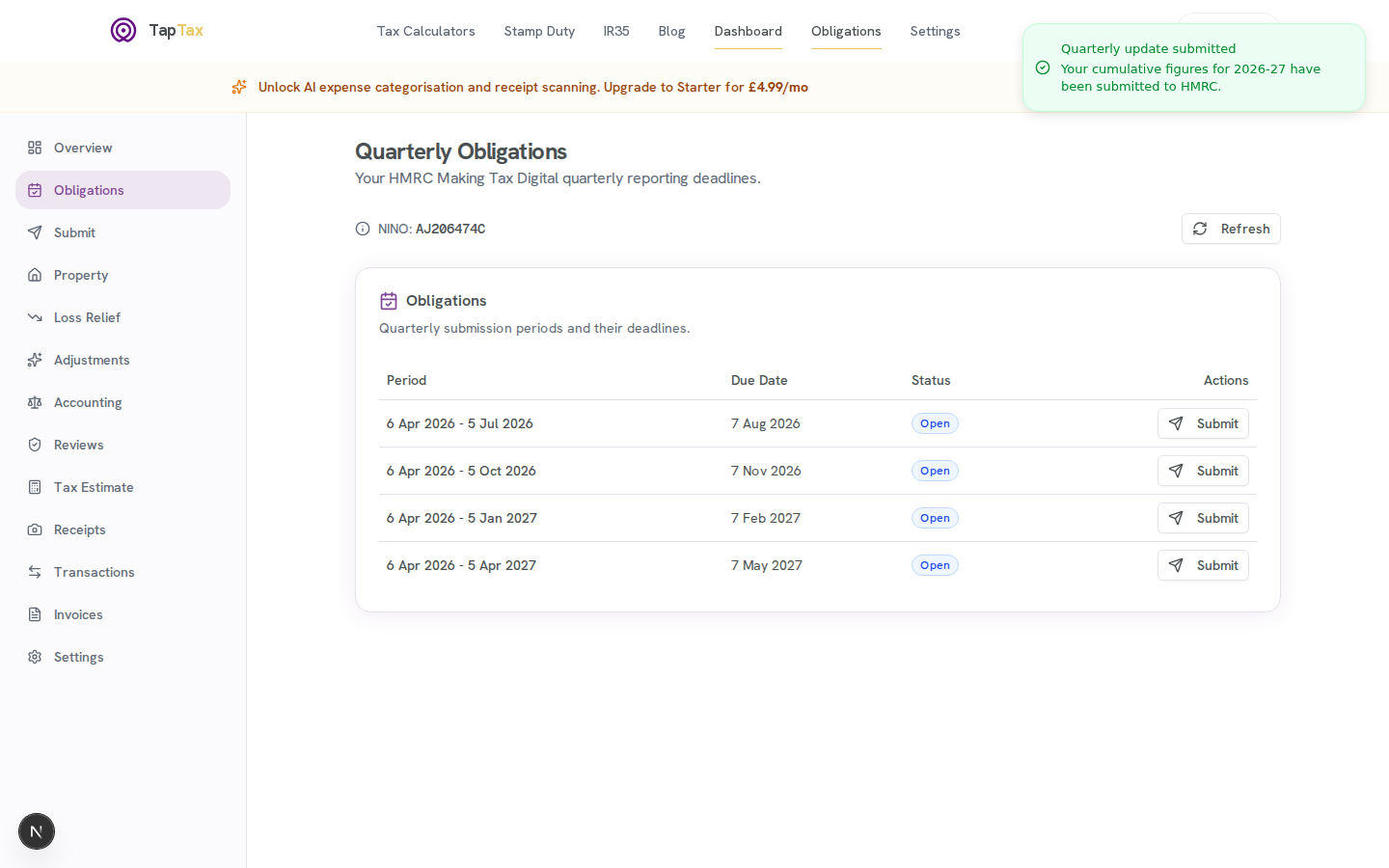
On the web
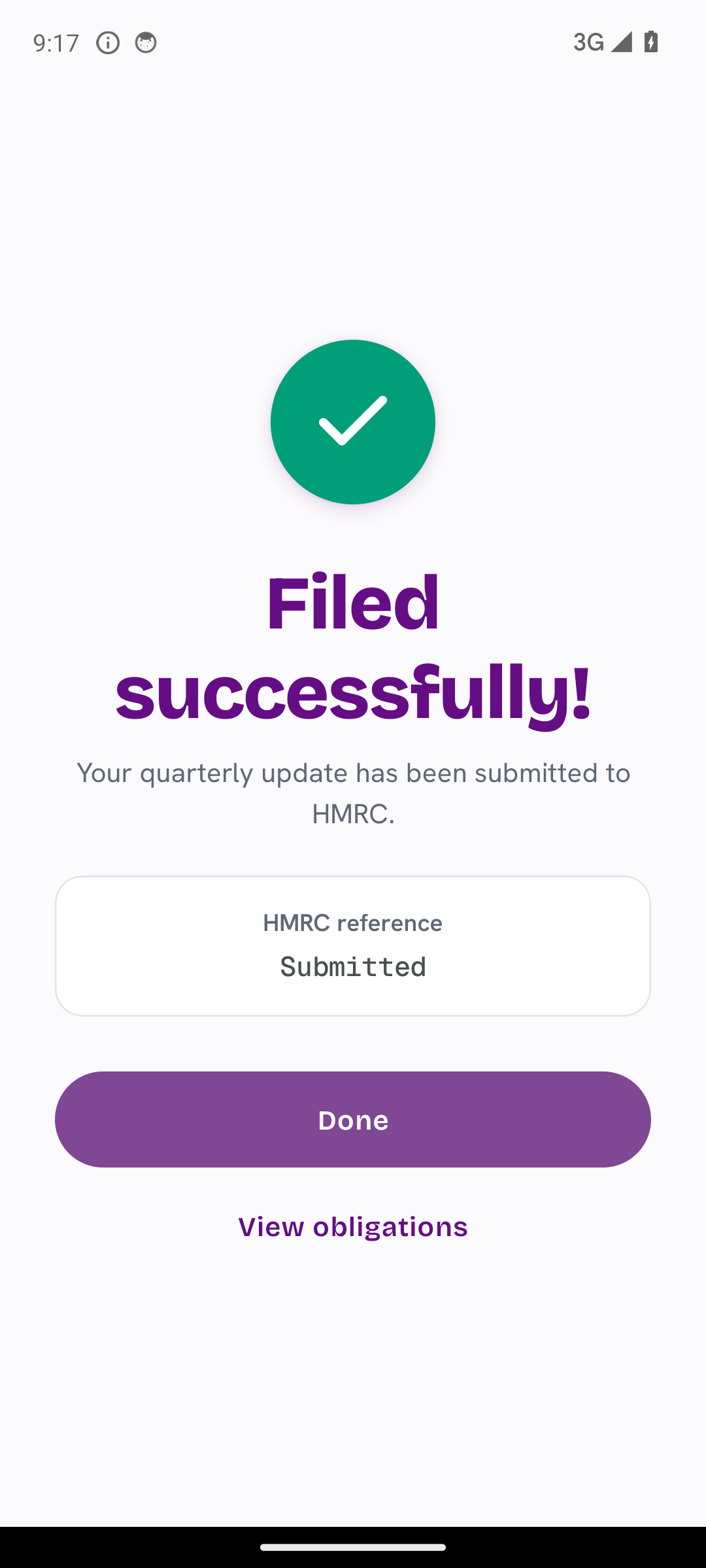
In the TapTax app
File it yourself, or have it reviewed
Most sole traders file directly in a couple of taps, which is included free. If you would rather have a second pair of eyes, TapTax also offers a Reviewed option where a qualified accountant checks your figures before they are submitted to HMRC. Either way, the data you tracked through the year does the heavy lifting.
That is all there is to it. Track as you go, review your categories, and each quarterly update becomes a five-minute job instead of a year-end scramble.
People also ask
File your MTD quarterly updates in minutes
TapTax imports your bank statements, categorises expenses automatically, and submits to HMRC with a tap. Free plan, no card required.
Start freeWork out your own numbers
You might also like
Stop dreading your tax return.
TapTax imports your bank statements, categorises expenses automatically, and submits quarterly updates to HMRC. Free plan, no card required.
Get started free